Flex Store — Fan Screen Reference
A click-through tour of the fan-facing Flex store (flex-v3-frontend), in the order a fan moves
through it to buy. Each shot has numbered points — click a point to read what it does, or scan the
list beneath it. This is the what's-on-screen companion to the back-end walkthrough in
Trace a Purchase; for the admin side that configures this store,
see the Cortex UI reference.
⚠️ Flex store as of June 2026 — the fan app is under active development; if a screen looks different, trust the live app over this page. Screens are from a sandbox (the running example is a "Golden State Warriors" Build Your Own program); the basketball mark is a placeholder team logo.
💡 The funnel:
events_home → select_events → select_inventory → select_addons → checkout_events → thank_you. The first three are below; the transactional tail (add-ons → checkout → confirmation) is described in The rest of the funnel — those screens require a completed vendor checkout, which the sandbox on a blocked network can't always reach.
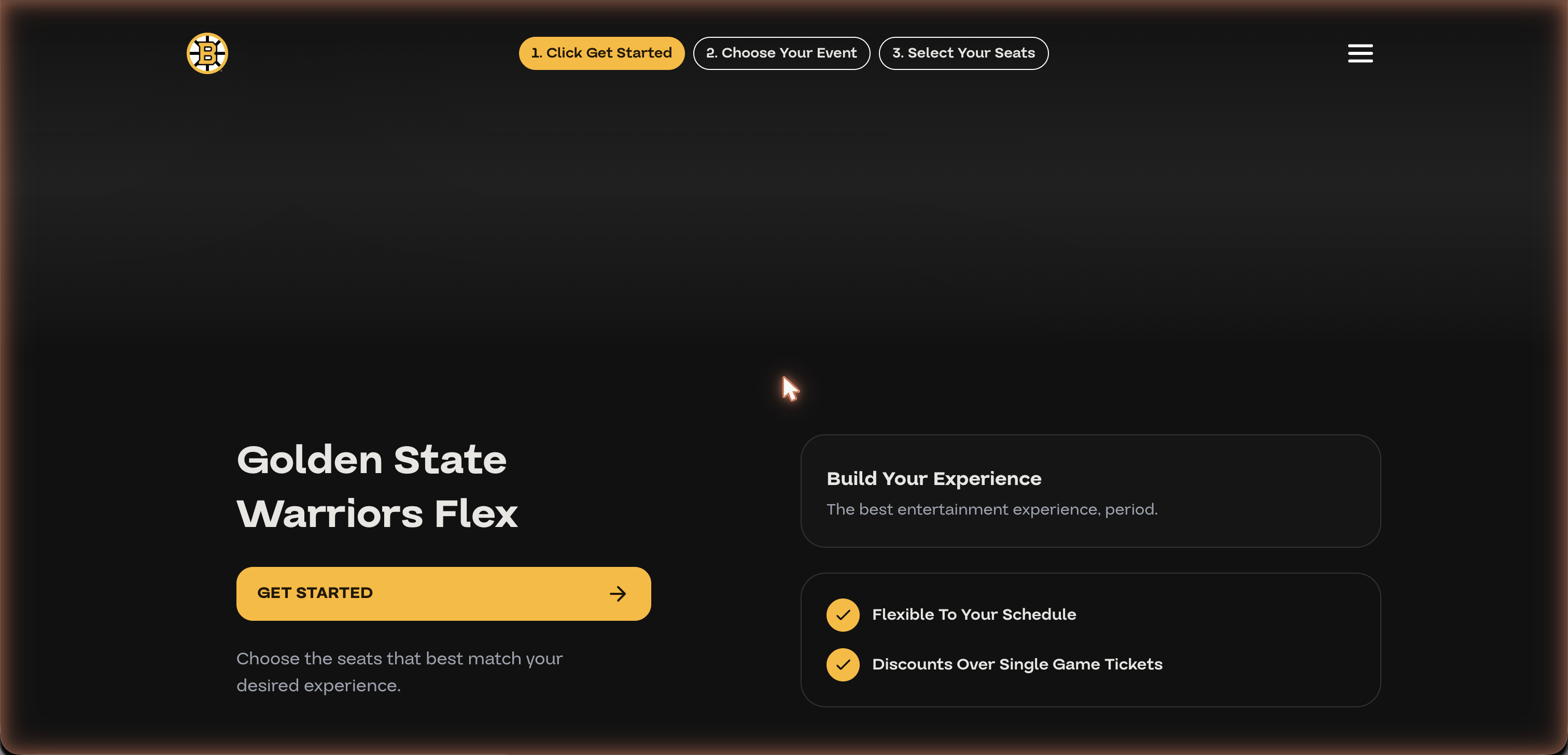
1. Events Home (storefront)
The landing page for a team's store. Publicly viewable — a fan can browse before logging in. The three-step indicator across the top (Get Started → Choose Event → Select Seats) is the whole journey.
2. Choose Your Event (Build Your Own)
Pick the events to bundle. This screen adapts to the program type — for Build Your Own it's a free choice of events up to the max; for Game Packs it shows named packs with per-tier min/max (see The Flex Program). Still anonymous; login is enforced on the next step.
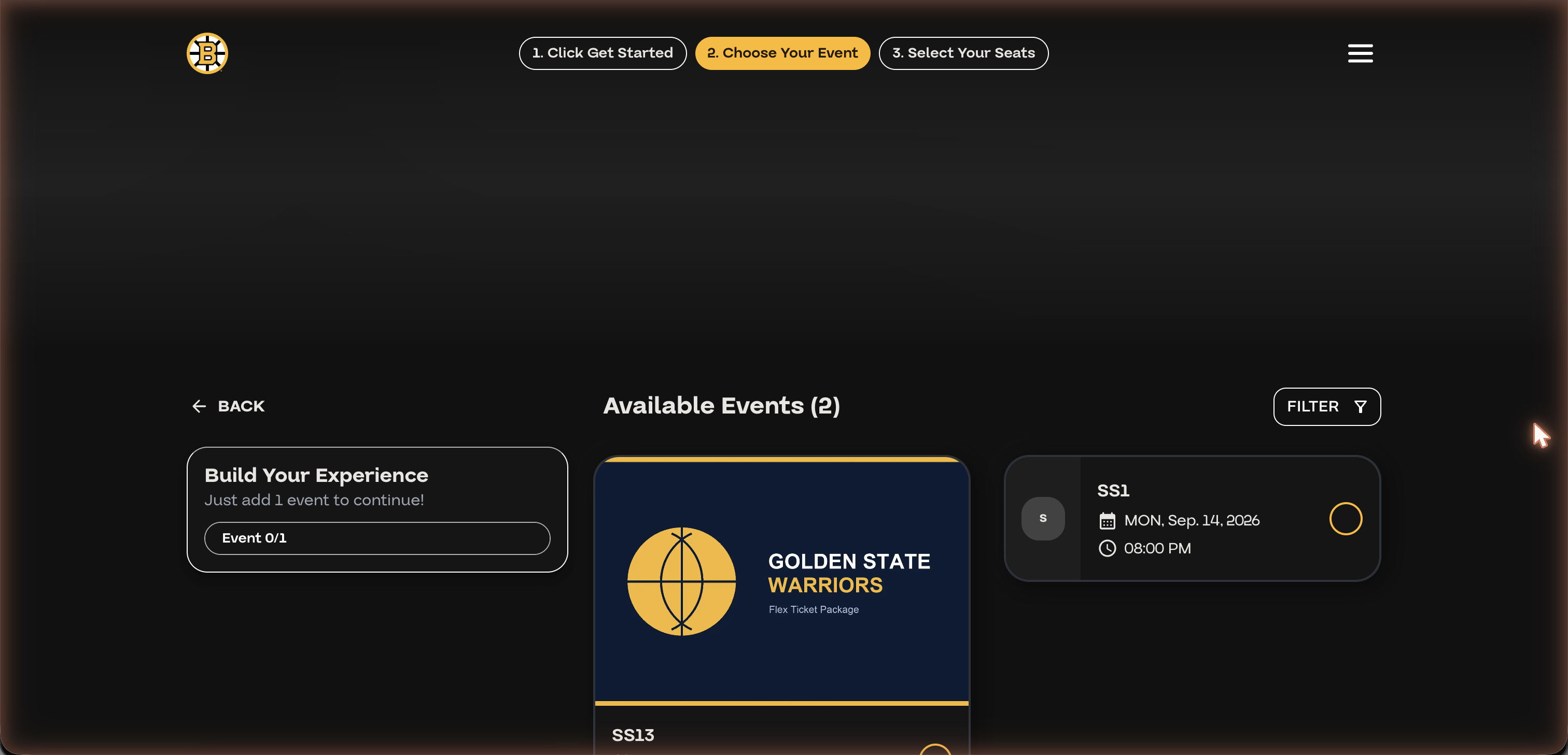
💡 A sticky Select Seats bar appears once the minimum is met; clicking it initializes a cart, holds nothing yet, and advances to seat selection. This is the first login-gated step.
3. Select Your Seats (inventory)
Per event, the fan picks a seat group. The catalog shows price-grouped seat options; the right rail carries the event, the venue seat map, and the running total. Prices come from the program's pricing rule resolved against vendor prices (Trace a Purchase, Step 2).
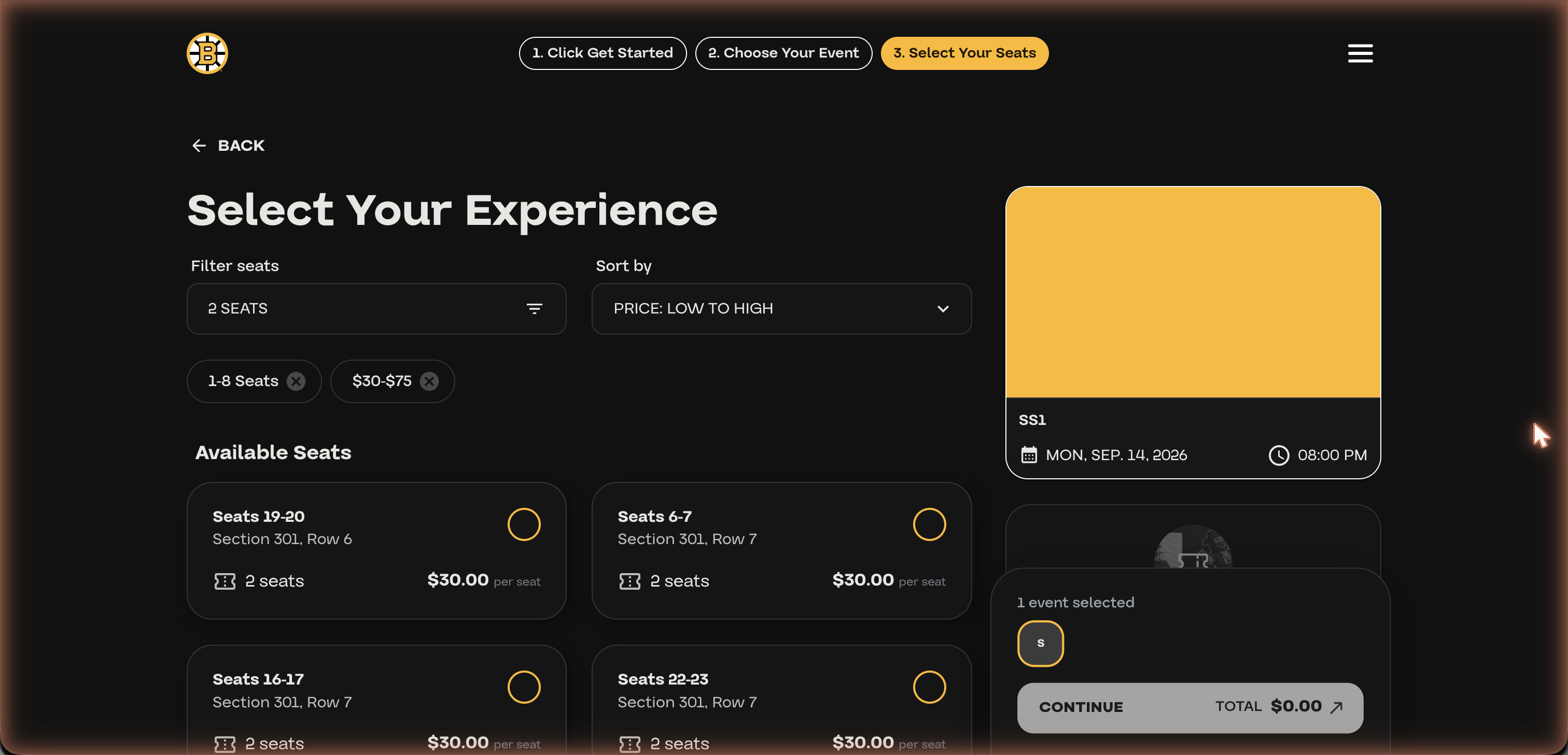
⚠️ Gotcha: seat prices resolve per price-code × ticket-type. If a code maps only to a $0 ticket type it shows $0 (and sorts to the top under “price low to high”) — fix the mapping in Cortex’s Configure Pricing. See Debug wrong pricing.
4. My Bookings
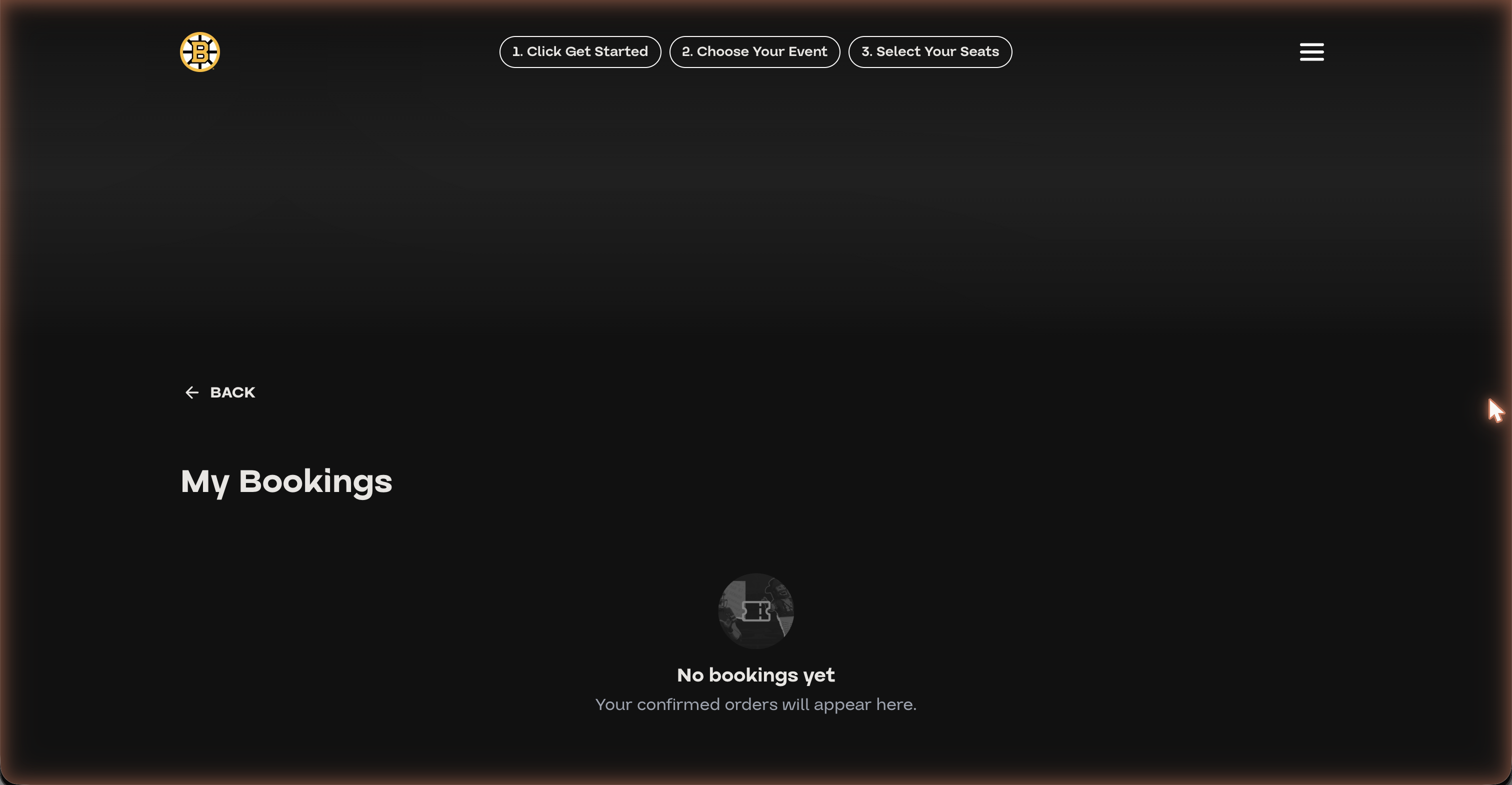
A logged-in fan's order history. Empty until a checkout completes; confirmed orders then list here (open from the account menu).
The rest of the funnel
The transactional screens follow seat selection. They're fully mapped in code and in Trace a Purchase, Steps 3–4; screenshots will be added when run from a network where the Ticketmaster token exchange isn't blocked (the sandbox here can't complete a vendor checkout).
- Select Add-ons (
select_addons) — optional per-event/suite extras (parking, F&B, hospitality) with a running order summary. Skipped automatically when a cart has no add-ons. (Add-on Types reference.) - Checkout (
checkout_events, "Review and confirm") — billing form, cart summary (events · seats · add-ons), a hold-expiry timer, optional payment plans, Stripe / saved-card payment, and Pay Now. Validates the held seats with the vendor before charging — TM Host captures a Stripe PaymentIntent only after every vendor commit succeeds; TM Archtics uses a native payment request. (Cart & Checkout.) - Thank You (
thank_you) — order confirmation: order number, email, card last-4, a per-event summary, and links to My Bookings / the vendor ticket manager.
⚠️ Sandbox limit: completing checkout needs a vendor-valid account. Bypass-auth signs you in locally (browse + hold seats work) but its account isn't in the Archtics sandbox, so checkout validate 400s; a real login needs the TM token exchange, which some networks block (403). On such a setup the funnel is fully demonstrable through Select Your Seats.
See also: Trace a Purchase (the same flow in the backend) · The Flex Program (BYO / Game Packs / tiers) · Cart & Checkout · Inside the Cart · Cortex UI (the admin side) · Run the stack locally